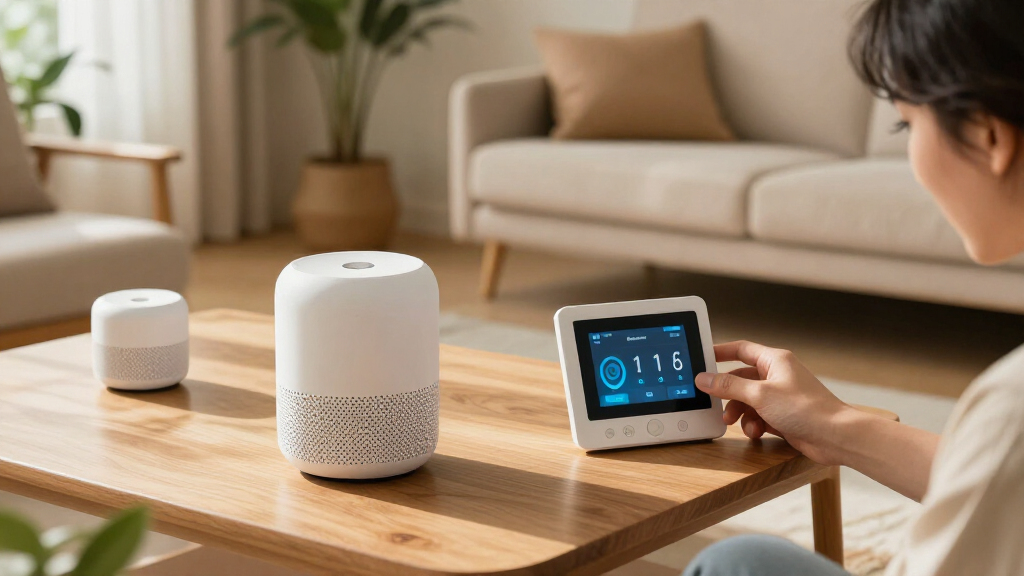

Choose and set up a small smart home system by matching devices to your needs, checking compatibility, and adding each device to its control app. This guide is for beginners who want to use current device categories such as smart speakers, lights, plugs, locks, cameras, sensors, and thermostats without buying a full system at once. Allow 1-3 hours for planning and setup; installation time varies by device.

Get everyday essentials delivered free with Prime
- Fast, free delivery on millions of items
- Prime Video, Amazon Music and more included
- Member-only deals all year

Amazon Echo Show 11 (newest model), Vibrant Full-HD 11-inch display with more viewing area and spatial audio, Designed for Alexa+…
- ✔ Display: 10.95-inch Full HD touchscreen, 1920 x 1200
- ✔ Camera: 13 MP with auto framing
- ✔ Smart-home hub: Zigbee, Matter, Thread Border Router

Amazon Echo Dot Max (newest model), Alexa speaker with room-filling sound and nearly 2x bass, Great for living rooms and medium-s…
- ✔ Audio drivers: 1 x 0.8-inch tweeter and 1 x 2.5-inch woofer
- ✔ Playback channels: Two-way mono
- ✔ Audio bandwidth: 53 Hz–16 kHz at volume 6

Amazon Echo Show 5 (newest model), Smart display, Designed for Alexa+, 2x the bass and clearer sound, Charcoal
- ✔ Display: 5.5-inch touchscreen
- ✔ Camera: 2 MP with built-in shutter
- ✔ Audio: 1.75-inch full-range speaker
Difficulty: Beginner | Time: 1-3 hours, plus delivery time
What You’ll Need
Tools & Materials:
- A smartphone or tablet with the manufacturer’s app store access
- A reliable home Wi-Fi network and its network name and password
- A smart home platform or hub, if required by the devices you choose
- A screwdriver or other installation tool specified by the device maker
Knowledge:
- Basic use of a smartphone and home Wi-Fi
- The rooms or tasks you want to automate
- Whether you rent or own your home, especially before changing wiring or locks
Device features, availability, and compatibility change by model and region. Check the manufacturer’s current specifications before buying. Some devices connect directly to Wi-Fi; others need a hub. Matter can help compatible products work across supported platforms, but it does not make every feature available everywhere. Never open wiring, replace a hardwired thermostat, or alter a lock unless you can do so safely and are allowed to make the change.
Amazon Echo Show 11 (newest model), Vibrant Full-HD 11-inch display with more viewing area and spatial audio, Designed for Alexa+…
For a household that wants one visible place to manage devices and daily routines, the Echo Show 11 is the most complete pick in this group. Its 10.95-inch Full HD touchscreen gives camera feeds, recipes, calendars, and video calls more room than the Echo Show 5; the centered 13 MP auto-framing camera also makes it better suited to calls where the smaller model’s 2 MP camera is a compromise. A built-in Zigbee, Matter, and Thread hub broadens its role beyond voice commands, and Wi-Fi 6E is a newer wireless specification than the Show 5’s dual-band Wi-Fi.It is also the most entertainment-oriented choice: spatial audio, a woofer, and two full-range drivers make it more capable for watching shows than a small bedside display. The Echo Dot Max remains the speaker-first alternative, with automatic room adaptation and a bass-focused design, but cannot show controls or camera video. The Show 11’s larger body, at about 10 by 5 by 7.2 inches and 1,302 grams, needs a more considered spot than either smaller device. Its camera and microphones can be disabled, but people who prefer a screen-free room may find the Dot Max easier to live with. This is our lead recommendation when versatility and visual control outweigh compact size.
Pros:
- 10.95-inch Full HD touchscreen offers more usable viewing area than the Echo Show 5.
- Built-in Zigbee, Matter, and Thread hub supports a broad range of compatible smart-home devices.
- 13 MP camera with auto framing and 3.3x zoom is better equipped for calls than the Show 5 camera.
- Spatial audio system combines a woofer and two full-range drivers for media playback.
Cons:
- Its roughly 1.3 kg body requires more counter or shelf space than the other picks.
- A camera-equipped display may not suit rooms where users prefer screen-free assistants.
- Some Alexa features and services may require subscriptions or other fees.
Best for: Households seeking a central Alexa display for smart-home controls, camera viewing, video calls, recipes, and entertainment.
Not ideal for: Buyers who want a discreet bedside device, a screen-free speaker, or a smaller footprint.
Bottom line: Choose the Echo Show 11 when we want the broadest mix of visual smart-home control, calls, and entertainment in one device.
“Choose the Echo Show 11 when we want the broadest mix of visual smart-home control, calls, and entertainment in one device.”
Amazon Echo Dot Max (newest model), Alexa speaker with room-filling sound and nearly 2x bass, Great for living rooms and medium-s…
When the room needs a voice assistant that can also carry the music, the Echo Dot Max fills a different role from either display. Its two-way mono system pairs a 2.5-inch woofer with a 0.8-inch tweeter, and Amazon describes nearly twice the bass of the 2026 Echo Dot. Automatic room adaptation is intended to tune playback to the space, so this is the lineup’s most focused option for music in a living room or medium-sized room. The Echo Show 11 has a larger audio setup and adds a screen, but the Dot Max makes more sense when the display would go unused.It still contributes to smart-home control: the built-in Zigbee, Matter, and Thread hub matches the Show 11’s listed hub protocols, and temperature or presence detection can trigger routines. That makes it more than a speaker, particularly if we want hands-free control without a visible screen. Compared with the Echo Show 5, it gives up video calls, camera viewing, and glanceable information, but its audio hardware is more substantial than the Show 5’s single full-range speaker. The tradeoff is that eero Built-in is not a universal Wi-Fi extender: it requires a compatible eero router, account linking, and operation within the stated limits of up to 1,000 square feet, up to 100 Mbps, and ten or fewer connected devices on 5 GHz. Choose it for sound and hub functions; skip it if visual feedback is central to how we manage the home.
Pros:
- Two-way audio system with a 2.5-inch woofer and 0.8-inch tweeter.
- Automatic room adaptation is designed to adjust playback to the space.
- Built-in Zigbee, Matter, and Thread hub supports compatible device control.
- Can extend a compatible eero network, subject to stated performance and device limits.
Cons:
- No display or camera for calls, camera feeds, or glanceable information.
- eero Built-in requires a compatible eero router, linked accounts, and suitable range.
- Mono playback may not suit buyers seeking stereo separation from a single device.
Best for: People who want a stronger Alexa speaker for music and smart-home routines in a living room or medium-sized space.
Not ideal for: Buyers who need a screen for video calls, camera feeds, or visual controls, or who expect eero Built-in to work without an eero router.
Bottom line: Pick the Echo Dot Max when audio and hub functionality matter more than a screen or video calling.
“Pick the Echo Dot Max when audio and hub functionality matter more than a screen or video calling.”
Amazon Echo Show 5 (newest model), Smart display, Designed for Alexa+, 2x the bass and clearer sound, Charcoal
The Echo Show 5 makes the most sense when we want a screen nearby without giving a counter or nightstand over to a larger display. Its 5.5-inch screen can show weather, news, compatible camera views, and basic information at a glance, while the built-in shutter and microphone/camera off control give us direct privacy controls. It is a more visual bedside companion than the Echo Dot Max, which has no screen, but it cannot match the Show 11’s roomier interface for recipes, calls, or camera viewing.Its size is the advantage and the limitation. At about 5.8 by 3.6 by 3.2 inches and 456 grams, it is easier to place in a small bedroom or kitchen corner than the Echo Show 11. The 2 MP camera supports video calls and check-ins, though the Show 11’s 13 MP auto-framing camera is a stronger fit for frequent calls. Audio comes from a single 1.75-inch full-range speaker: adequate for a compact assistant, but less ambitious than the Dot Max’s woofer-and-tweeter arrangement or the Show 11’s multi-driver system. Connectivity is also more modest, with dual-band Wi-Fi and Matter compatibility listed, rather than the newer Wi-Fi 6E and built-in Zigbee, Matter, and Thread hub found on the two newer companion devices in this comparison. We recommend it for small spaces and glanceable tasks, not as the home’s most capable hub or main entertainment device.
Pros:
- Compact body fits more easily on a nightstand or small counter than the Show 11.
- 5.5-inch touchscreen supports glanceable information, compatible camera views, and video calls.
- Built-in camera shutter and microphone/camera off button provide physical privacy controls.
- Supports Matter-compatible smart-home devices.
Cons:
- 2 MP camera is less capable on paper than the Show 11’s 13 MP auto-framing camera.
- Single 1.75-inch full-range speaker is less substantial than the Dot Max’s two-way system.
- Dual-band Wi-Fi and listed Matter compatibility omit the Wi-Fi 6E and built-in Zigbee/Thread hub features of the other two picks.
Best for: Buyers who want a compact Alexa display for a bedside table, desk, or small kitchen counter.
Not ideal for: Those seeking a central smart-home hub with Zigbee and Thread, a large screen, or stronger calls and room-filling audio.
Bottom line: Choose the Echo Show 5 when compact visual assistance matters more than a large screen, stronger audio, or broader hub support.
“Choose the Echo Show 5 when compact visual assistance matters more than a large screen, stronger audio, or broader hub support.”
As an Amazon Associate we earn from qualifying purchases.
Before You Start
Pick one everyday problem to solve first, such as turning off lamps remotely, checking a door, or adjusting a thermostat. Confirm that your Wi-Fi reaches the intended room and that the device works with the phone platform or voice assistant you use. Check whether the device needs a subscription, bridge, neutral wire, particular Wi-Fi band, or local storage. Keep packaging and receipts until setup succeeds.
Step-by-Step Instructions
Step 1: Choose the first job to automate
Write down one task you want a device to handle. Choose a specific result, such as switching a table lamp on at sunset, receiving a door-open alert, or viewing a camera feed while away. Start with one or two devices that solve that task. This keeps setup manageable and helps you judge whether the system suits your home.
Tip:For a simple first project, a smart bulb or plug usually requires less installation than a lock or thermostat. A plug must be rated for the appliance you connect; do not use one with equipment whose manufacturer prohibits it.
Check: You can state what the first device should do and where you will use it.
Step 2: Check device and platform compatibility
Choose the phone app or smart home platform you already use, then check each product’s supported platforms and requirements on the maker’s product page. Confirm the exact model, not just the brand. Check Wi-Fi band requirements, hub or bridge needs, Matter support where relevant, subscription costs, and whether the functions you want work in your country.
Tip:Compatibility labels describe supported connections, not identical features. Check that the specific action you want, such as camera recording or lock-code management, is supported in your chosen app.
Check: Every item on your shortlist can connect to your chosen platform, and you know what extra hardware or subscription it needs.
Step 3: Check the installation location
Stand where the device will be installed and check Wi-Fi signal with your phone. For a camera or sensor, confirm the view, power source, and mounting position. For a bulb, check its socket type and whether the wall switch must stay on. For a lock, verify the door and deadbolt dimensions against the maker’s fit guide. For a thermostat, check the wiring requirements before purchase.
Tip:Renters should check lease rules before drilling, changing a lock, or modifying wiring. Get the property owner’s approval when required.
Check: The intended location has power and network coverage, and the device fits without an unplanned wiring or mounting change.
Step 4: Prepare your network and account
Install the manufacturer’s official app from your phone’s app store. Create or sign in to an account, turn on available account protection such as multifactor authentication, and update the app. Record your Wi-Fi name and password. If your router has separate network names, check the device instructions for the band it requires before beginning setup.
Tip:Do not share account passwords with household members. Add them through the app’s household or access-sharing feature when available.
Check: You can sign in to the app and your phone is connected to the home network you plan to use.
Step 5: Install and connect one device
Follow the product’s installation instructions in order. Use the included mounting parts and power supply, then open the app and select its add-device option. Scan the setup code or follow the pairing prompts, connect the device to the required network, and give it a clear room-based name such as “Hallway lamp.” Add devices one at a time so you can identify any setup issue.
Tip:For hardwired equipment, follow the maker’s safety instructions and use a qualified installer if you are not trained to work with the wiring. Do not guess at wire connections.
Check: The app shows the device as online, identifies the intended room, and provides its basic controls.
Step 6: Update and test basic controls
Check the device settings for a firmware update and apply it while the device has stable power and network access. Then test the main control from the app, such as switching a light on and off or viewing a camera live feed. If the device has a physical control, test that too and confirm it still behaves as expected.
Tip:Keep the device powered and avoid unplugging it during an update. A restart can be part of the maker’s normal update process.
Check: The device responds to the app, shows no pending update alert, and still works from its physical control where applicable.
Step 7: Add a simple routine and household access
Create one low-risk routine, such as turning a lamp on at a set time. Set the correct location, time zone, and schedule in the app, then run or preview the routine if that option is available. Invite household members through the platform’s access controls and assign only the permissions they need.
Tip:Test a routine while you are home before relying on it. Avoid routines that unlock doors or disable alarms without a deliberate confirmation.
Check: The routine runs at the expected time or passes the app’s test, and invited household members can access only the intended devices.
Step 8: Expand only after the first device works
Use the first device for several days. Note connection drops, confusing controls, or features that require another hub or subscription. Add the next device only when you can explain how it will work with the existing setup. Keep a short list of device names, rooms, and account owners so future troubleshooting is easier.
Tip:Before buying several devices, check whether your router or hub has a limit on connected devices and whether coverage needs improvement.
Check: The first device remains reliably available, and the next purchase addresses a specific need with confirmed compatibility.
Common Mistakes to Avoid
- Buying a product because it has the same brand as another device. — Check the exact model’s platform support, required hub, and the availability of the features you need before purchasing.
- Starting setup where Wi-Fi is weak. — Check signal at the installation location first. Improve coverage or choose a suitable hub placement before pairing devices.
- Turning off a wall switch that powers a smart bulb. — Leave the switch on for app control, or choose a smart switch designed for the circuit and wiring.
- Creating a routine before checking its schedule and permissions. — Verify the time zone, trigger, target devices, and household access, then test the routine at home.
Troubleshooting
Problem: The app cannot find the device during pairing.
Solution: Move the phone and device near the router, check the required Wi-Fi band, and follow the manufacturer’s pairing or reset steps. Confirm Bluetooth or local network permissions if the app requests them.
Problem: The device shows offline after setup.
Solution: Check that it has power and that the router is online. Restart the device using the maker’s instructions, then check signal at its location. Re-pair only after noting that doing so may remove settings.
Problem: A device appears in its maker’s app but not in the main smart home app.
Solution: Confirm that the exact model supports the platform and that both apps use the intended account or linking method. Follow the maker’s instructions for Matter pairing or account linking; not all product features transfer.
Problem: A routine runs at the wrong time or not at all.
Solution: Check the home’s location, time zone, schedule, trigger conditions, and device online status. Run a simple manual test, then edit and retest the routine.
What Success Looks Like
Your starter system is working when each selected device appears online in the intended room, responds to its basic app control, and performs any tested routine at the expected time. Household members have appropriate access, and you know which devices rely on a hub, subscription, or specific network condition. Keep the product instructions and account recovery details somewhere secure.
Next Steps
Use the system for a week and review device status, routine timing, and alerts. Remove routines you do not use, update firmware when prompted, and review shared access after household changes. Add devices gradually, checking compatibility and network capacity each time. Contact the maker or a qualified installer if a device repeatedly disconnects, wiring requirements are unclear, or a lock or safety device behaves unexpectedly.
Frequently Asked Questions
Do I need a smart home hub?
Some devices connect directly to Wi-Fi, while others need a hub or bridge. Check the exact model’s requirements. A hub can also help devices that use a different wireless protocol communicate with your chosen platform.
Will Matter make every smart device work with every app?
No. Matter can support setup and control across compatible devices and platforms, but support depends on the product, platform, software version, and feature. Check the maker’s current compatibility information for the function you plan to use.
Can I set up smart devices without a voice assistant?
Usually. Many products can be controlled through their manufacturer’s app or a compatible smart home app. Check whether the device requires a platform account or hub even if you do not plan to use voice control.
What should I buy first?
Choose the device that solves your clearest everyday problem. A smart bulb or plug is often a simple first setup; choose a camera, lock, or thermostat when its specific function matters and you have checked installation, privacy, and compatibility requirements.