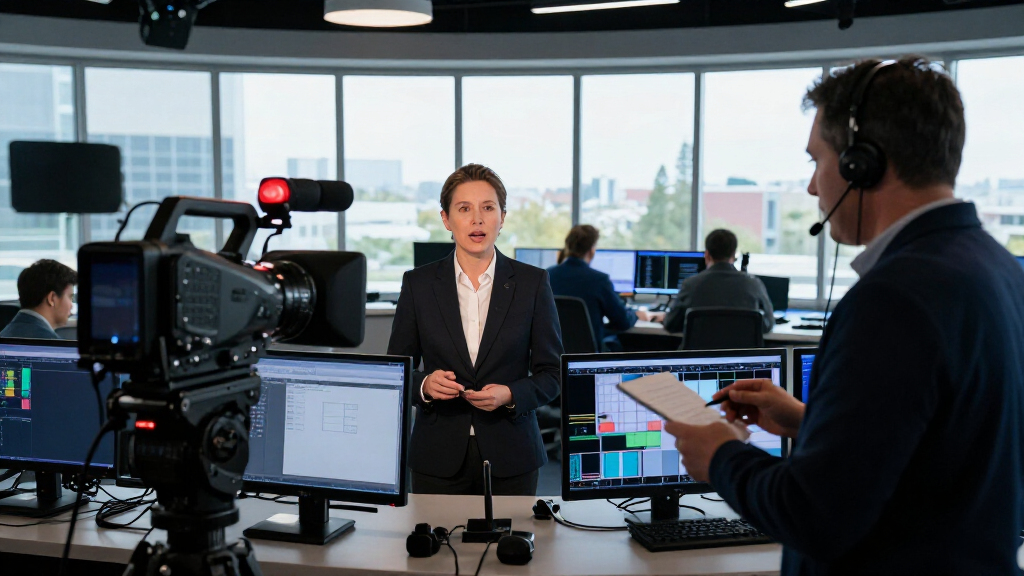
This checklist is for newsroom teams planning a live broadcast setup, whether they’re outfitting a mobile kit or reviewing a studio workflow. The picks cover switching, wireless video, encoding, monitoring, and power, with a teleprompter section focused on choosing the right fit.

Get everyday essentials delivered free with Prime
- Fast, free delivery on millions of items
- Prime Video, Amazon Music and more included
- Member-only deals all year
Each section covers one equipment role and names a product where one was provided. The advice stays grounded in the product names and the practical questions a newsroom can use to assess fit, connections, and setup needs.
Use the checklist to compare each pick with your existing gear and production plan. Confirm supported inputs, outputs, signal formats, and power requirements in the manufacturer’s documentation before building a workflow around a device.
Portable video switcher
A portable switcher can serve as the control point for a live production, bringing camera sources together for a program feed. The YoloLiv YoloBox Ultra 4K Live Streaming Studio is the named pick for this slot. Before choosing any switcher, map the sources the newsroom actually plans to use and check the device documentation for supported inputs, output options, and the number of sources it can handle at once.
A common buying mistake is treating a product name or a broad feature label as proof that it fits every camera and workflow. Confirm whether each camera’s connection and video format are supported, and whether the switcher can deliver the program output to the newsroom’s streaming or recording path. For a mobile kit, consider screen visibility, controls during a fast-paced segment, and how the unit will be secured and powered at the location.
Check the full signal chain before the first show: camera output, cable or adapter, switcher input, and destination. Verify that any 4K requirement applies to the specific inputs and outputs you need. Match the kit to the planned source count, leaving room for the actual cameras and other video sources in your rundown.
What to look for:
- Confirm supported camera inputs and video formats in the product documentation.
- Match the supported source count to the cameras and other sources in the rundown.
- Check that the program output connects to the intended streaming or recording system.
- Verify 4K support for the specific inputs and outputs your workflow requires.
- Plan mounting, visibility, and power for the locations where the switcher will be used.
YoloLiv YoloBox Ultra 4K Live Streaming Studio

The YoloBox Ultra is an all-in-one live production device with a 4K encoder, switcher, recorder, and 8-inch touchscreen. It supports horizontal and vertical multistreaming, up to four HDMI inputs, NDI and SRT, cellular bonding, and ISO recordings for post-production.
Pros:
- Combines a switcher, encoder, recorder, and monitor in one device
- Supports simultaneous horizontal and vertical streaming
- Offers multiple video inputs, NDI/SRT support, and network bonding
- Records video inputs separately for post-production
Cons:
- NDI/SRT features may involve additional charges
- The product information includes a battery recovery procedure that may require two 45W chargers
Best for: Newsrooms seeking a named portable switcher for a multi-source workflow.
Not ideal for: Teams that have not confirmed their cameras and destinations are compatible.
Bottom line: Choose the YoloLiv YoloBox Ultra after confirming its supported connections and formats suit the production plan.
Wireless HDMI transmitter
A wireless HDMI link can help move a video signal when a direct cable run does not suit the room or location. The listed pick is a Wireless HDMI Transmitter with 4 Receivers, 500 ft, 1080p. Those details identify the stated receiver count, range, and resolution, but the product name alone does not establish how well it will work in a particular newsroom or venue.
One common mistake is treating the stated 500 ft range as a guarantee for every environment. Obstacles, layout, and other conditions can affect a wireless link, so assess the actual path and test the setup where it will be used. Confirm that the transmitter and receivers support the required HDMI signal and that each receiver can connect to its intended display or production device. Check how the system handles power and whether the receiver placement is practical for the crew.
The stated resolution is 1080p, so compare that with the output settings and monitoring needs of the camera and destination. If the production depends on a different format, verify compatibility before adding the link to the chain. Count every receiver location, then consider whether wireless transmission is needed for each one or whether a direct connection better fits the setup.
What to look for:
- Confirm the HDMI signal format required by the camera and destination is supported.
- Plan receiver placement for the stated four receivers and intended display locations.
- Treat the stated range as a planning reference and test the actual signal path.
- Check whether the stated 1080p resolution fits the complete workflow.
- Verify how transmitter and receivers are powered and secured at each location.
Wireless HDMI Transmitter with 4 Receivers, 500 ft, 1080p
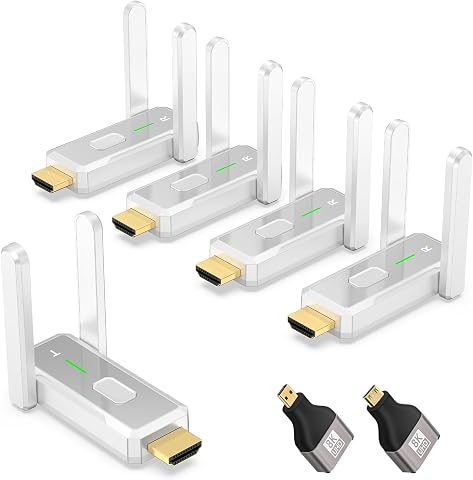
This wireless HDMI kit includes one transmitter and four receivers for sharing audio and video with multiple displays. It supports 1080p at 60 Hz, 4K decoding, dual-band 2.4 GHz and 5 GHz transmission, and plug-and-play setup; range is up to 500 feet in open spaces and may be reduced through walls.
Pros:
- Includes four receivers for multi-display setups
- Plug-and-play setup requires no software or drivers
- Supports 1080p at 60 Hz and 4K decoding
- Includes Micro HDMI and Mini HDMI adapters
Cons:
- Transmission range decreases through walls
- Requires a separate 5V/1A or higher power source for each unit
- Does not support TV-to-TV transmission
Best for: Teams planning a wireless HDMI connection to several receiver locations.
Not ideal for: Productions that require an unverified format or depend on a tested cable-free path.
Bottom line: Confirm the HDMI format and test the intended locations before relying on this transmitter and receiver set.
Broadcast teleprompter
A teleprompter helps presenters follow prepared copy while addressing the camera. No product was specified for this slot, so choose based on the newsroom’s camera, lens, script workflow, and available setup space. Start by listing the camera bodies and lenses that will be used; a prompter must work with the camera and lens combination, not just look suitable in a product photo.
A common mistake is buying before checking the mounting method, clearance, and viewing arrangement. Confirm what the prompter includes and what must be supplied separately, such as a compatible mount, display, or prompting software. Make sure the presenter can read the text from the intended position and that the setup does not block camera controls or access to the lens. For a mobile kit, account for assembly time, transport, and the space available at each location.
Test with the actual script display and camera before a live segment. Check whether the text is legible at the presenter’s distance and whether the displayed copy can be operated by the person assigned to manage it. Verify how the setup connects to the newsroom’s devices and whether those connections match the chosen display and software. Prioritize fit and readability over extra features that the crew will not use.
What to look for:
- Check compatibility with the newsroom’s camera bodies, lenses, and mounting method.
- Confirm what display, mount, and prompting software are included or required.
- Assess presenter distance, text legibility, and camera framing in the actual setup.
- Verify that controls and connections suit the device used to manage scripts.
- Test assembly and operation in the space and workflow planned for live segments.
Streaming encoder
A streaming encoder sits between a production feed and its streaming destination, translating or handling video for delivery. The named pick is the YoloLiv YoloBox Extreme 4K All-in-One Multi-Cam Live Streaming Equipme. The supplied name is truncated, so verify the exact product listing and model details before comparing capabilities or planning a connection.
A common buying mistake is assuming that the phrase all-in-one confirms every required function or destination is supported. Check the manufacturer’s documentation for accepted video inputs, output formats, streaming destinations, network requirements, and simultaneous source support. Match those details to the newsroom’s cameras, switcher output, and distribution plan. Confirm whether 4K support applies to the specific stages of the workflow you need, rather than relying on the name alone.
Consider the physical setup as well as the signal path: where the encoder will sit, how operators will manage it, and what power and network connections are available. A multi-camera workflow also needs a clear plan for which device switches sources and which device encodes the finished feed. Test the complete chain with the intended source and destination, and confirm that the crew can monitor status and respond to interruptions. Build the decision around documented compatibility with the actual newsroom setup.
What to look for:
- Verify the exact product name and model because the supplied name is truncated.
- Confirm supported video inputs, output formats, and streaming destinations.
- Check how multi-camera sources are handled and where switching occurs in the workflow.
- Verify 4K support for each required stage, from input through delivery.
- Confirm network and power requirements at the intended production location.
YoloLiv YoloBox Extreme 4K All-in-One Multi-Cam Live Streaming Equipment

The YoloLiv YoloBox Extreme is a versatile live streaming device featuring 8 HDMI inputs with 4K60 scaling, a 11.2-inch OLED touchscreen, and support for ISO recording up to 4K30. It includes integrated NDI HX support for wireless IP workflows, multi-camera instant replay, and extended 10-hour battery life, making it ideal for professional live productions.
Pros:
- Supports multiple HDMI sources with 4K60 scaling for flexible multi-camera setups
- High-quality OLED touchscreen with vivid visuals and smooth interface
- Extended battery life allows for all-day streaming and recording
- Seamless integration with NDI workflows for wireless IP production
Cons:
- Complex setup may require technical expertise
- High price point may be a barrier for casual users
- Limited to professional-grade features which may be unnecessary for simple streaming needs
Best for: Teams evaluating a named multi-camera streaming encoder for a 4K workflow.
Not ideal for: Newsrooms that have not verified the exact model and its supported destinations.
Bottom line: Confirm the full model details and documented signal path before making this encoder part of a live workflow.
Video production monitor
A production monitor gives the crew a screen for viewing video during setup or a live production. The listed pick is a 17.3 Inch 1920×1080 Desktop Monitor for Broadcast LCD Monitoring with . Its name ends mid-description, so confirm the full listing and specifications before treating it as a match for a newsroom workflow.
Do not assume that a stated screen size and resolution establish compatibility with a camera, switcher, or playback source. Check the monitor’s supported inputs and signal formats against the device that will feed it, and confirm whether any needed cables or adapters are available. Consider viewing distance, placement, and whether the monitor will be used at a desk or moved between production locations. A screen that fits one setup may not suit another crew position or mounting arrangement.
Ask what monitoring task the screen needs to support: confidence viewing, preview, or another defined role. Then verify that its connection and display behavior suit that task. Check power, stand or mounting options, and how the screen will be protected and transported if it is used outside a fixed desk setup. Before a live broadcast, test it with the actual source and settings; confirm that the displayed picture is useful to the operator from the position where they will work.
What to look for:
- Confirm the complete product listing and specifications because the supplied name is truncated.
- Match supported inputs and signal formats to the intended video source.
- Check whether the 17.3-inch screen size suits the operator’s viewing position.
- Verify power, stand, mounting, cable, and adapter needs for the planned location.
- Test the monitor with the actual source and settings before the broadcast.
17.3 Inch 1920×1080 Desktop Monitor for Broadcast LCD Monitoring with 3G-SDI HDM
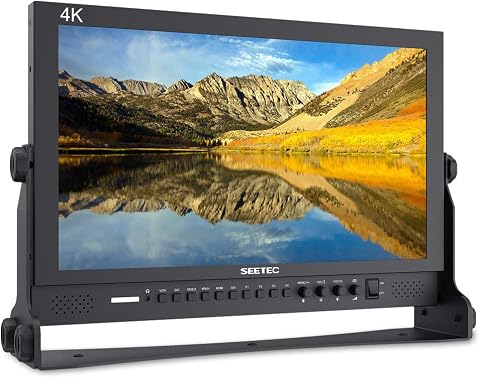
This 17.3-inch Full HD LCD monitor features a resolution of 1920×1080, high brightness, and multiple input options including 3G-SDI and HDMI. Designed for broadcast and professional use, it offers high impact resistance and versatile connectivity.
Pros:
- High-resolution Full HD display with excellent image clarity
- Multiple input and output options suitable for professional broadcast use
- Durable full metal cabinet with high impact resistance
- Built-in LED tally light for easy monitoring
Cons:
- Relatively slow response time of 40ms may not be ideal for fast-paced video editing
- Heavy weight at 3.3 kg could affect portability
- Limited viewing angles for some users
Best for: Teams looking for a stated 17.3-inch 1920×1080 desktop monitoring display.
Not ideal for: Mobile crews needing a monitor whose transport and mounting fit are unconfirmed.
Bottom line: Verify the full listing and source compatibility before assigning this monitor a production role.
Portable power station
A portable power station can be considered when a production location needs power away from a fixed outlet. The named pick is the Jackery HomePower 3600 Plus Portable Power Station. Its name provides a product identity, but it does not specify which newsroom devices it can run, for how long, or under what conditions.
A common mistake is choosing a power station without totaling the equipment load. List the devices that must stay powered, their documented power requirements, and whether they will run at the same time. Check the station’s specifications for output types, capacity, and any limits relevant to those devices. Confirm that each device’s plug or power supply can connect safely and correctly. Account for runtime needs across setup, broadcast, and pack-down rather than estimating from a single device.
For a mobile newsroom, consider where the station will be placed, how it will be transported, and whether the location allows safe operation. Review the manufacturer’s instructions for charging, storage, and use. Confirm the crew’s plan if the production runs longer than expected or a critical device needs backup power. Test the intended equipment combination before relying on it during a live event, and document which connections serve each device so setup remains clear.
What to look for:
- Compare documented output types and limits with each device’s power requirements.
- Estimate runtime using the full set of devices that will operate simultaneously.
- Confirm plugs, power supplies, and connection methods fit the intended equipment.
- Check transport, placement, and safe-use instructions for the production location.
- Test the actual equipment combination and define a backup plan before going live.
Jackery HomePower 3600 Plus Portable Power Station

This portable power station provides 3,600W AC output and 3,584Wh capacity, expandable to 21kWh per unit. It offers AC, solar, hybrid AC+DC, and gas generator charging, with a wheeled design and telescopic handle for portability.
Pros:
- High 3,600W output for home backup
- Expandable capacity
- Multiple charging options
- Wheels and telescopic handle aid transport
Cons:
- Heavy at 77.2 pounds
- Solar panel is optional
Best for: Teams assessing portable power for a location-based newsroom setup.
Not ideal for: Crews that have not matched equipment loads and runtime needs to the specifications.
Bottom line: Choose the Jackery HomePower 3600 Plus only after confirming its documented outputs and runtime suit the production load.
Set the buying order by production priorities: first confirm the camera-to-stream signal path, then resolve switching, encoding, and monitoring needs. Add the wireless HDMI link only where its format and tested range fit the locations, and assess portable power against the combined equipment load and runtime.
Work through the checklist with the crew who will set up and operate the kit. Confirm product details, test the full workflow before air, and keep a record of the connections that work. A few careful checks can make the equipment plan easier to use on broadcast day.